LocalFinds Template - Documentation
Table of Contents
This is the complete documentation for the LocalFinds Astro directory template, covering setup, configuration, Airtable, forms, deployment, theming, and an end-to-end walkthrough. Buyers also get this same documentation inside the Github repo.
Getting started
This guide gets the template running on your machine and explains how the pieces fit together.
What you’ll need
- Git. To clone the repo (and pull future template updates). Check with
git --version. - Node.js version 22.12.0 or newer. Node is the JavaScript runtime the build tools run on. Check your version with
node --version. - pnpm. The package manager this project uses (like npm, but faster and stricter). Install it once with
npm install -g pnpm. - An Airtable account. This is where your listings live. A free account is enough to start. (Airtable setup →)
- A code editor such as VS Code. Optional but recommended.
New to these tools? Astro turns your content into a regular website made of plain HTML files. Airtable is a “spreadsheet that acts like a database” - you’ll edit your listings there in a friendly grid. You don’t need to be a developer to manage content, but the initial setup and deploy do involve the command line.
0. Get the code
Clone the repo to your machine:
git clone https://github.com/webrating/local-finds-directory.git
cd local-finds-directory
Cloning keeps you connected to the template repo, so you can pull future fixes and updates:
git pull # later - fetch template updates we've pushedOptional: make it your own independent repo
If you’d rather your project have a clean history with no link back to the template (so your commits and ours never tangle), detach it after cloning:
rm -rf .git        # drop the template's git history
git init           # start fresh
# then create your own (private) repo on GitHub and push to it
The trade-off: you give up git pull-ing our future template updates - you’d have to merge those in manually. Most buyers keep the clone connected; detach only if you specifically want a standalone repo.
Install
pnpm installIf native dependencies misbehave after install (rare), run pnpm rebuild.
Set up your environment
The site needs to know how to reach your Airtable base. Those secrets live in a file called .env, which is never committed to git.
cp .env.example .envThen open .env and fill in:
AIRTABLE_TOKEN=your_personal_access_token
AIRTABLE_BASE=appXXXXXXXXXXXXXX
Where these come from is covered step-by-step in Airtable setup. The dev server reads this file once at startup, so if you change it, restart pnpm dev.
Run it
pnpm devOpen http://localhost:4321 . (If that port is busy, Astro picks the next free one and prints the URL.)
On startup you’ll see it fetch your content, e.g. Loaded 15 items from Airtable "Items".
The commands you’ll use
| Command | What it does |
|---|---|
pnpm dev | Start the local dev server. Re-reads Airtable each time you start it. |
pnpm build | Build the production site into dist/. |
pnpm preview | Serve the built site locally using the real Cloudflare runtime. Good for a final check before deploy. |
pnpm exec astro check | Type-check the whole project (catches mistakes the editor might miss). |
There is no test runner or linter configured - type-checking via
astro checkis the safety net.
How it’s built (the mental model)
   Airtable base                 build step                    your website
 ┌───────────────┐        ┌──────────────────────┐        ┌──────────────────┐
 │ Items         │        │ src/loaders/          │        │ static HTML pages │
 │ Cuisines      │  ───►  │   airtable.ts         │  ───►  │ in dist/          │
 │ Areas         │        │ • fetches all tables  │        │ • /listings       │
 │ Tags          │        │ • resolves links→slugs│        │ • /place/<slug>   │
 │ + images      │        │ • downloads images    │        │ • /cuisine/<slug> │
 └───────────────┘        └──────────────────────┘        │ • /map, /blog ... │
└──────────────────┘- You manage content in Airtable - listings, categories, photos.
- At build time, the loader (
src/loaders/airtable.ts) pulls every table, turns Airtable’s internal record links into clean URL slugs, and downloads images locally (Airtable’s image URLs expire, so they’re never linked directly). - Astro renders static pages from that data, using
src/site.config.tsfor all the vertical-specific labels and URLs.
The consequence: because pages are pre-rendered, a content change in Airtable shows up only after a rebuild. In development, restart pnpm dev. In production, trigger a deploy (you can automate this - see deployment).
The only server-side parts are the three form endpoints; everything else is plain static files.
Project structure
src/
  site.config.ts        ← THE file you customise (vertical, brand, taxonomies, nav, SEO)
  loaders/airtable.ts   ← reads Airtable at build time
  content.config.ts     ← defines the "items", "pages", and "blog" collections
  data/items.ts         ← typed accessor used by pages (getItems, getItem, …)
  layouts/              ← BaseLayout (site shell) + ContentLayout (MDX/blog)
  components/           ← PlaceCard, CoverImage, Map, StatusBadge, FilterSidebar, …
  pages/                ← routes (see below)
    index.astro         ← homepage
    listings.astro      ← all listings + filters
    map.astro           ← map view
    [itemBase]/[slug].astro   ← a listing's detail page (e.g. /place/<slug>)
    [taxonomy]/[slug].astro   ← a category browse page (e.g. /cuisine/<slug>)
    [slug].astro        ← catch-all for MDX "pages" (About, Privacy, …)
    blog/               ← blog index + posts
    api/                ← submit / contact / subscribe form endpoints (server-side)
  content/
    pages/*.mdx         ← static pages (About, Privacy)
    blog/*.mdx          ← blog posts
    assets/blog/        ← blog cover images
  styles/global.css     ← Tailwind theme tokens + prose styles
public/                 ← static files served as-is (favicons, robots.txt, og image)
  airtable/             ← images downloaded from Airtable at build (auto-generated)
docs/                   ← you are here
Next
→ Configuration reference - make it yours.
Configuration reference
Everything that makes this directory yours lives in one file: src/site.config.ts. This guide documents every field.
The components and routes never hard-code “restaurant” anything - they read this config. So to re-purpose the template for a different industry, you edit this file (and your Airtable labels), and the whole site re-labels itself. For an end-to-end example see the restaurants to hairdressers walkthrough.
After editing this file, restart
pnpm dev(and rebuild for production). The config is read at build time.
Contents
- Stable keys vs. labels - read this first
- Brand & identity
- Theme (colours)
- Announcement bar
- Hero (homepage)
- SEO & social
- Organization (structured data)
- Map
- Item (your listing)
- Taxonomies (your categories)
- Tiers (price)
- Blog
- Header
- Footer
Stable keys vs. labels
This is the one concept that makes safe re-labelling possible. Throughout the config you’ll see both a key and a label:
key(e.g.cuisine,area,tag) is a stable internal identifier used in code. Never rename a key once you have content and live URLs depending on it - it’s wired into the loader and components.label/plural/slugBaseare human-facing - the words shown in the UI and used in URLs. Rename these freely.
So a “cuisine” taxonomy can display as “Specialty” and live at /specialty/... while the code still calls it cuisine under the hood. You change the labels; the key stays put.
Important: the loader matches Airtable fields and tables by name, derived from these labels (details in Airtable setup). If you rename a
label/pluralhere, rename the matching Airtable table/field to match - or the loader won’t find it.
Brand & identity
brand: 'LocalFinds',
brandIcon: 'ph:map-trifold',
city: 'Sunshine Coast',
vertical: 'restaurants',| Field | Type | What it does |
|---|---|---|
brand | string | Your site name. Shown in the header logo, footer, page titles, and social cards. |
brandIcon | string | An optional Phosphor icon shown before the brand text in the header, e.g. ph:map-pin, ph:storefront, ph:scissors. Set to '' to hide it. The icon inherits the brand colour. |
city | string | The place your directory covers. Appears in titles, SEO copy, and the map default. |
vertical | string | A free-text label for your own reference (restaurants, salons, …). Not shown to visitors; just documents what this config is for. |
Finding an icon name: browse phosphoricons.com, click an icon, and use its name prefixed with ph: (the icon “map-trifold” → ph:map-trifold). The same ph:-prefixed names work anywhere the config takes an icon (header menu, brand).
Theme (colours)
theme: {
  primary: '#69268E',
  primaryHover: '#35268e',
},| Field | Type | What it does |
|---|---|---|
primary | hex colour | The main accent - buttons, links, active states, the hero card, filter highlights, the brand logo. |
primaryHover | hex colour | The darker shade used on hover for primary buttons/links. |
These two values recolour the entire site. They’re injected as CSS variables at runtime, so every accent in the UI follows them. Change these two lines to rebrand. More in theming & fonts.
Announcement bar
announcement: '',A thin bar across the very top of every page (above the header). Put a string here to show it (e.g. '🎉 Now covering the whole coast!'); leave it '' to hide the bar entirely.
Hero (homepage)
heroTitle: 'The Best of Sunshine Coast',
heroBlurb: 'A hand-picked list of the very best places to eat and drink…',
heroCtas: [
  { label: 'Browse all places', href: '/listings', style: 'primary' },
  { label: 'Open the map', href: '/map', style: 'ghost' },
],| Field | Type | What it does |
|---|---|---|
heroTitle | string | The big headline in the homepage hero card. |
heroBlurb | string | The supporting sentence under the headline. |
heroCtas | array | The call-to-action buttons in the hero. Each has a label, an href, and a style of 'primary' (filled) or 'ghost' (outline). Use [] to hide the button row. |
SEO & social
seo: {
  defaultOgImage: '/og-default.svg',
  defaultDescription: 'A hand-picked directory of the best cafes…',
  locale: 'en_AU',
  twitter: '',
  taxonomyDefault: {
    title: '{value} {plural} in {city}',
    description: 'The best {city} {pluralLower} for {valueLower} - hand-picked.',
  },
},
These drive the <meta> description, Open Graph + Twitter cards, and are the site-wide fallbacks (individual pages set their own where it makes sense).
| Field | Type | What it does |
|---|---|---|
defaultOgImage | path | The image shown when your site is shared on social media. Replace /og-default.svg in public/ with a branded 1200×630 image. |
defaultDescription | string | The meta description used on the homepage and any page without its own. |
locale | string | The Open Graph locale, e.g. en_AU, en_GB, en_US. |
twitter | string | Your @handle for Twitter/X cards. Leave '' to omit it. |
taxonomyDefault | object | Fallback SEO templates for category browse pages - see below. |
Taxonomy SEO templates
Category pages (/cuisine/..., /area/..., /tags/...) generate their own titles and descriptions from templates. Each taxonomy can define its own seo (see Taxonomies); seo.taxonomyDefault is the fallback for any taxonomy that doesn’t.
Templates use these tokens, substituted per page:
| Token | Becomes | Example |
|---|---|---|
{value} | the category value, Title Cased | Italian, Noosa Heads |
{valueLower} | the value, lower-cased (reads better mid-sentence) | margaritas |
{plural} | item.plural | Places to Eat |
{pluralLower} | item.plural, lower-cased | places to eat |
{city} | city | Sunshine Coast |
{count} | number of matching listings | 12 |
Example: the template 'The Best {value} {plural} in {city}' on the cuisine page for “italian” renders as “The Best Italian Places to Eat in Sunshine Coast”.
Category pages that end up with zero matching listings are automatically marked
noindex(kept out of search engines), so you never publish thin/empty pages.
Organization (structured data)
organization: {
  name: 'LocalFinds SC',
  logo: '/favicon.svg',
},
Used for JSON-LD structured data (the Organization schema on the homepage/About, and as the publisher on blog posts). name is your organisation’s name (can differ from brand if your legal/org name is different) and logo is a path in public/.
Map
map: {
  style: 'https://tiles.openfreemap.org/styles/positron',
  center: [153.066666, -26.650000],   // [longitude, latitude]
  zoom: 12,
},
The map view (/map) and the per-listing mini-map use MapLibre GL with free, keyless map tiles - no account or API key needed.
| Field | Type | What it does |
|---|---|---|
style | URL | The map style. The default positron is a clean, muted, label-light style so your markers stand out. Alternatives from OpenFreeMap: swap positron for liberty (full Google-Maps-style POIs) or bright. |
center | [lng, lat] | Where the map centres by default. Note the order: longitude first, then latitude. Find coordinates at latlong.net. |
zoom | number | Initial zoom (higher = closer). 12 is roughly city-level. |
Only listings that have Lat and Lng values in Airtable get a map marker.
Upgrade path: to eliminate any third-party tile dependency later, you can self-host Protomaps
.pmtileson Cloudflare R2 and pointstyleat it - thepmtiles://protocol is already wired in. This is optional; the default works out of the box.
Item (your listing)
This is the thing your directory lists - a restaurant, a salon, a garage. Generically, an “Item”.
item: {
  singular: 'Place to Eat',
  plural: 'Places to Eat',
  slugBase: 'place',          // detail pages live at /place/<slug>
  highlightLabel: 'Why we like it',
  showHours: true,
  showPrice: true,
  showMap: true,
},| Field | Type | What it does |
|---|---|---|
singular | string | What you call one listing (Place, Salon, Garage). Used in headings and copy. |
plural | string | The plural form. Flows into titles, the “All {plural}” pages, SEO templates, footer text, and buttons. |
slugBase | string | The URL segment for detail pages. place → /place/the-old-spence. Set it to whatever reads well for your vertical (salon, garage). |
highlightLabel | string | The label for the editorial “why we picked this” line on detail pages. |
showHours | boolean | If true, shows the Open/Closed status pill (driven by the Hours field) and the “Open now” filter. Turn off for verticals without opening hours. |
showPrice | boolean | Whether to show the price tier (see Tiers). |
showMap | boolean | Whether to show the map on detail pages (for listings that have coordinates). |
Each per-listing field degrades gracefully - if a listing has no hours, phone, or photo, that part simply doesn’t render. So you can omit fields your vertical doesn’t use.
Taxonomies (your categories)
Taxonomies are the ways you slice your listings - by cuisine, by area, by tags. Each taxonomy becomes:
- an Airtable table (where you manage the category values),
- a URL segment + browse page (
/cuisine/italian), - a filter group on the listings page,
- a footer column.
taxonomies: [
  {
    key: 'cuisine', label: 'Cuisine', plural: 'Cuisines', slugBase: 'cuisine',
    multi: false, filter: true, browse: true,
    seo: {
      title: 'The Best {value} {plural} in {city}',
      description: 'The best {value} {pluralLower} in {city} - hand-picked.',
    },
  },
  {
    key: 'area', label: 'Area', plural: 'Areas', slugBase: 'area',
    multi: false, filter: true, browse: true,
    seo: {
      title: 'The Best {plural} in {value}',
      description: 'The best {pluralLower} in {value}, {city} - hand-picked.',
    },
  },
  { key: 'tag', label: 'Tag', plural: 'Tags', slugBase: 'tags', multi: true, filter: true, browse: true },
],| Field | Type | What it does |
|---|---|---|
key | string | Stable internal id - never rename. (Why) |
label | string | Singular human label (UI, filter group heading, breadcrumbs). |
plural | string | Plural label (nav, footer column, and the default Airtable table name). |
slugBase | string | URL segment for this taxonomy’s browse pages: cuisine → /cuisine/<slug>. |
multi | boolean | false = a listing has at most one (cuisine, area); true = a listing can have many, shown as multiple chips (tags). |
filter | boolean | Show this as a filter group on the listings page. |
browse | boolean | Generate browse pages (/{slugBase}/{value}) and a footer column for it. |
seo | object (optional) | Per-taxonomy SEO title/description templates (tokens). Omit to use seo.taxonomyDefault. |
You can add, remove, or rename taxonomies. Want “Specialty / Area / Service” instead of “Cuisine / Area / Tags”? Change the labels (keep keys), and rename the Airtable tables to match. Want a fourth taxonomy? Add an entry with a new key and create the matching Airtable table. Want fewer? Remove an entry and its table.
How a taxonomy connects to Airtable: the loader looks for a table named after the taxonomy’s
plural, and a link field on the Items table named after thelabel(for single-value) orplural(for multi-value). Defaults: tableCuisines+ Items fieldCuisine; tableTags+ Items fieldTags. Full mapping →
Tiers (price)
An optional single dimension for price level ($–$$$$).
tiers: {
  enabled: true,
  field: 'price',
  options: ['$', '$$', '$$$', '$$$$'],
},| Field | Type | What it does |
|---|---|---|
enabled | boolean | Turn the whole price feature on/off. Set false for verticals where price tiers don’t apply. |
field | string | Internal field key - leave as is. |
options | string[] | The tier labels, in order. These must exactly match the Tier single-select options in Airtable. Use ASCII $ (not £/€) to avoid text-encoding problems - display currency is cosmetic. |
Blog
blog: {
  enabled: true,
  label: 'Blog',
  slugBase: 'blog',   // posts at /blog/<slug>
},| Field | Type | What it does |
|---|---|---|
enabled | boolean | Whether the blog exists. |
label | string | What it’s called in nav (Blog, Guides, News). |
slugBase | string | URL segment for the blog. Note: posts are MDX files in src/content/blog/. slugBase controls the links; to actually move the route folder you’d rename src/pages/blog/ to match. |
Blog posts are authored as MDX with frontmatter (title, description, author, cover, dates, draft, featured, and a newsletter toggle for the sign-up band at the foot of each post). See src/content/blog/ for examples.
Header
header: {
  showSearch: true,
  menu: [
    { label: 'All', href: '/listings', icon: 'ph:squares-four' },
    { label: 'Map', href: '/map', icon: 'ph:map-trifold' },
    { label: 'Blog', href: '/blog', icon: 'ph:notebook' },
    { label: 'About', href: '/about', icon: 'ph:info' },
    { label: 'Submit', href: '/submit', icon: 'ph:cursor' },
  ],
},| Field | Type | What it does |
|---|---|---|
showSearch | boolean | Show the search box in the header. |
menu | array | The header navigation links - the single place to add/remove/reorder them. |
Each menu item has:
| Item field | What it does |
|---|---|
label | The link text. |
href | Where it goes. |
icon | Optional ph:-prefixed Phosphor icon shown before the label. |
style | 'link' (default plain text) or 'button' (a filled pill, e.g. a “Subscribe” CTA). |
On mobile the menu collapses into a hamburger automatically. Delete a line to remove that link.
Footer
footer: {
  website: [
    { label: 'Home', href: '/' },
    { label: 'All Listings', href: '/listings' },
    // …
  ],
},
footer.website is the explicit “Website” column of footer links (same NavItem shape as the header menu). The other footer columns (one per browsable taxonomy - Cuisines / Areas / Tags) are generated automatically from your taxonomies and Airtable values, so they stay in sync without manual editing.
Next
→ Airtable setup - connect your content.
Airtable setup
Your listings live in Airtable - think of it as a spreadsheet that behaves like a database. You edit listings there in a friendly grid, and the site reads them at build time.
There are two ways to get a base: copy the ready-made one (fastest) or build it from scratch (full control). Either way you’ll finish by creating an access token.
Reminder: content changes appear only after a rebuild. See the build model.
Option A - copy the example base (fastest)
The template ships with a fully-populated example base (the Sunshine Coast restaurant guide). Copying it gives you the exact table/field structure the loader expects, already filled with sample data you can edit or replace.
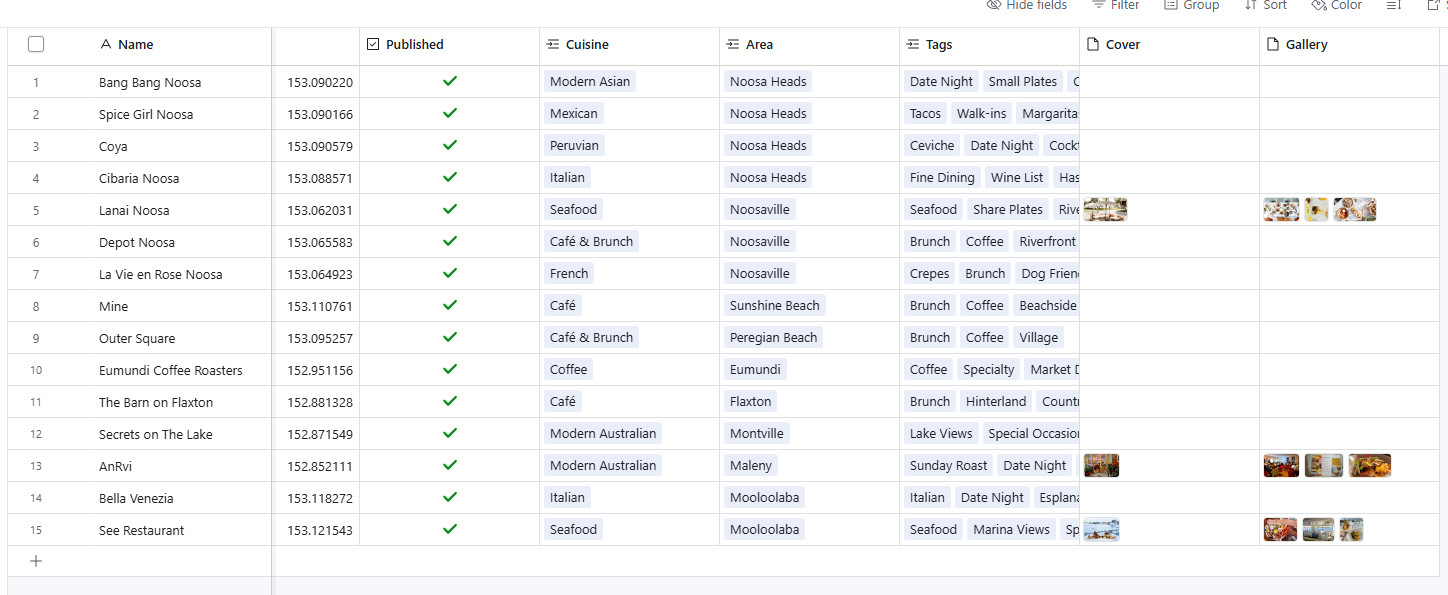
Example base: open the shared LocalFinds base on Airtable
To use it:
- Open the shared base link above.
- Click Copy base (top-right) to duplicate it into your own Airtable workspace. This makes you the owner with full edit rights.
- Open your copy and grab its base id from the URL (the part starting with
app, e.g.https://airtable.com/appXXXXXXXXXXXXXX/...). - Continue to Step 3: create an access token.
Then edit the sample listings to make it your own.
If you’re switching verticals (e.g. to hairdressers), copy the base first, then rename its tables/fields to match your config labels - see the walkthrough.
Option B - build the base from scratch
Create a new base in Airtable and add these tables. Field names matter - the loader matches Airtable fields by name (not column order, so you can reorder columns freely).
Table: Items - your listings
The main table. One row per listing.
| Field | Airtable type | Required | Notes |
|---|---|---|---|
Name | Single line text | ✓ | The listing’s name. Make this the table’s primary field. |
Slug | Single line text | ✓ | URL-safe id, e.g. bella-venezia. Lowercase, hyphens, unique. The detail page URL becomes /<slugBase>/<Slug>. |
Description | Long text | – | Short summary shown on cards and as the page meta description. |
Body | Long text | – | Long-form detail-page content. Markdown is supported. |
Highlight | Long text | – | The editorial “why we like it” line (detail page only). |
Tagline | Single line text | – | A short italic strapline under the name. |
Tier | Single select | – | Price level. Options must match tiers.options in config: $, $$, $$$, $$$$. |
Hours | Long text | – | Opening hours as JSON (see below). Drives the Open/Closed pill. |
Address | Single line text | – | Postal address (also used for the “Directions” link). |
Phone | Single line text | – | Phone number (used for the “Call” link). |
Website | URL | – | External website (the “Visit website” button). |
Lat | Number | – | Latitude (decimal). Needed for a map marker. |
Lng | Number | – | Longitude (decimal). Needed for a map marker. |
Cover | Attachment | – | One image - the card thumbnail + detail hero. |
Gallery | Attachment | – | Extra images - the detail-page thumbnail row. |
Featured | Checkbox | – | Tick to feature on the homepage. |
Published | Checkbox | – | Controls visibility. A row is published unless this is explicitly unchecked - see note. |
Cuisine | Link to Cuisines | – | Links to the cuisine table (single). |
Area | Link to Areas | – | Links to the area table (single). |
Tags | Link to Tags | – | Links to the tag table (allows multiple). |
Publishing: the loader skips a row only if
Publishedis explicitlyfalse(unchecked). If you want drafts to be hidden, add thePublishedcheckbox and untick it for drafts. Rows without the field at all are treated as published.
Tables: Cuisines, Areas, Tags - your categories
One table per taxonomy in your config. Each needs just:
| Field | Airtable type | Required | Notes |
|---|---|---|---|
Name | Single line text | ✓ | Display name, e.g. Italian. Primary field. |
Slug | Single line text | ✓ | URL-safe id, e.g. italian. Becomes /cuisine/italian. |
Published | Checkbox | – | Same rule as Items: a value is dropped only if explicitly unchecked. |
How these connect to config: each taxonomy’s plural is the table name, and the Items link field is the taxonomy’s label (single-value) or plural (multi-value):
| Config taxonomy | Airtable table | Items link field |
|---|---|---|
{ key: 'cuisine', label: 'Cuisine', plural: 'Cuisines', multi: false } | Cuisines | Cuisine |
{ key: 'area', label: 'Area', plural: 'Areas', multi: false } | Areas | Area |
{ key: 'tag', label: 'Tag', plural: 'Tags', multi: true } | Tags | Tags |
If you rename a taxonomy’s labels in config, rename the matching table/field to match.
Table: Submissions - the “submit a business” form
The public submit form writes here. (How the form works →)
| Field | Airtable type | Notes |
|---|---|---|
Business Name | Single line text | Primary field. |
Submitter Name | Single line text | |
Email | Email / text | |
Is Owner | Single select | Options: Yes, No. |
Why | Long text | Free text. Newsletter opt-in is appended here as a note (see forms guide). |
Status | Single select | Options: New, Reviewing, Live, Rejected. New rows arrive as New. |
Table: Contact - the contact form
| Field | Airtable type | Notes |
|---|---|---|
Name | Single line text | Primary field. |
Email | Email / text | |
Message | Long text | |
Status | Single select | Options: New, Replied, Closed. New rows arrive as New. |
The Hours field
Hours is a JSON object mapping weekday → "open-close" in 24h time. Days use three-letter lowercase keys (mon–sun); omit a day to mark it closed. Past-midnight ranges (e.g. a bar open till 1am) are handled.
{ "mon": "09:00-17:00", "tue": "09:00-17:00", "fri": "09:00-23:00", "sat": "10:00-23:00" }This drives the Open / Closing soon / Opening soon / Closed pill and the “Open now” filter. If a listing has no hours, the pill simply doesn’t show.
Step 3: create an access token
The site authenticates to Airtable with a Personal Access Token (PAT).
- Go to https://airtable.com/create/tokens.
- Click Create token, give it a name (e.g. “LocalFinds site”).
- Add these scopes:
data.records:read- read your listings (used by the build).data.records:write- write form submissions (used by the submit/contact endpoints).schema.bases:read- read table structure.
- Under Access, add your base.
- Click Create token and copy it now (you won’t see it again).
Put it in .env along with your base id:
AIRTABLE_TOKEN=patXXXXXXXXXXXXXX.XXXXXXXXXXXXXXXXXXXXXXXXXXXX
AIRTABLE_BASE=appXXXXXXXXXXXXXX
Restart pnpm dev. You should see Loaded N items from Airtable "Items" on startup.
Keep this token secret. Never commit
.env. For production, set the same variables as deploy secrets - see deployment. If a token is ever exposed, revoke it in the tokens page and create a new one.
Editing content
Day-to-day, you just edit rows in Airtable:
- Add a listing: new row in
Items, fillName+Slug, link aCuisine/Area/Tags, drag photos intoCover/Gallery. - Add a category: new row in
Cuisines/Areas/TagswithName+Slug, then link it from a listing. - Feature something: tick
Featuredon a listing. - Hide something: untick
Published.
Then rebuild to see it live.
About images
Airtable’s attachment URLs are signed and expire, so the site never links them directly. At build time the loader downloads each Cover/Gallery image into public/airtable/ and references the local copy. This means images are stable and self-hosted - but also that adding a photo requires a rebuild to appear. (For a permanent image host at scale, you can later point the downloads at Cloudflare R2.)
Bulk import (optional): the CSV seed script
If you have many listings to load at once, there’s a one-off seed script that replaces the base contents from a CSV:
node --env-file=.env scripts/airtable-seed.mjs your-data.csv --dry-run   # preview
node --env-file=.env scripts/airtable-seed.mjs your-data.csv             # do it
It parses the CSV, derives the distinct Cuisine/Area/Tag values, deletes all existing rows in Items + taxonomy tables, then recreates everything and links them. Photos are not imported (rights + expiring URLs) - add those by drag-drop afterwards.
⚠️ This is destructive - it wipes the base first. Always
--dry-runbefore the real run, and only use it on a base you’re happy to reset. For ongoing edits, just use Airtable directly.
Encoding note: the script uses Node’s
fetch(notcurl) on purpose -curlin some environments corrupts multibyte characters (é, - , ñ). If you write to Airtable via scripts, prefer Nodefetch.
Next
→ Forms - how submit / contact / newsletter work.
Forms
The template has three forms:
| Form | Page | Endpoint | Writes to |
|---|---|---|---|
| Submit a business | /submit | src/pages/api/submit.ts | Airtable Submissions table |
| Contact | /contact | src/pages/api/contact.ts | Airtable Contact table |
| Newsletter | /subscribe (+ sign-up bands) | src/pages/api/subscribe.ts | Buttondown (once enabled) |
How they work (the shared pattern)
Almost the entire site is static HTML. These three form endpoints are the only server-rendered parts (marked export const prerender = false), running at request time on the Cloudflare runtime.
Each endpoint follows the same flow:
- The visitor submits the form (a normal HTML
POST- works without JavaScript). - The endpoint checks a honeypot field (spam guard, below), validates the inputs, and writes to Airtable (or Buttondown).
- It then redirects back to the form page with a
?status=...flag:?status=ok→ green success banner?status=invalid→ “please check your entries” banner?status=error→ “something went wrong” banner
So the user gets clear feedback and the URL reflects the outcome.
Spam protection (built in)
All three forms run through a shared spam guard (src/lib/spam-guard.ts) before anything is saved - no CAPTCHA, no widget, no client-side friction. The layers, cheapest first:
- Honeypot. A hidden
companyfield real people never see or fill. Bots fill every field - if it’s set, the endpoint pretends success and saves nothing. - Timing. A hidden
tsfield is stamped when the page loads. Submissions that arrive implausibly fast (under ~2.5s - bots) or very stale (over 2 hours - replayed pages) are silently dropped. - Origin check. Form posts must come from your own domain. (Astro v6 also enforces this at the framework level, returning
403for cross-site posts - so this is belt-and-braces.) - User-Agent check. Requests must look like they came from a real browser, blocking lazy scripted bots (
curl, etc.). - Per-IP rate limit. Each IP is capped (default 3 submissions per minute per form) via the Cloudflare Rate Limiting binding. Over the cap, the visitor gets a friendly “wait a minute” banner (
?status=ratelimited).
Design note: the bot-shaped rejections (1–4) return a fake success so a bot gets no signal about what tripped it. Only the rate limit and genuine validation errors show a real message. Both the honeypot and timing fields are provided by the shared FormGuard.astro component - drop it inside any new form to protect it.
The rate-limit step only runs on the Cloudflare runtime (
pnpm build+pnpm preview, and production) - it’s skipped inpnpm dev, where the binding doesn’t exist. The other four layers work everywhere.
Want even stronger protection? Cloudflare Turnstile (a privacy-friendly CAPTCHA) can be added on top, and you can add WAF rate-limit rules at the edge - see deployment. For most local directories the built-in guard is plenty.
Submit a business (/submit)
Lets the public suggest listings. Writes a row to the Submissions table with Status: New for you to review.
Fields:
| Form field | Required | → Airtable field |
|---|---|---|
| Your name | ✓ | Submitter Name |
| ✓ | Email | |
| Business name | ✓ | Business Name |
| Are you the owner? (Yes/No) | ✓ | Is Owner |
| What makes this business good? | – | Why |
| Newsletter opt-in (checkbox) | – | appended to Why |
spam-guard fields (company, ts) | hidden | - (handled by FormGuard) |
Newsletter opt-in: the submit form has an unchecked-by-default “sign me up” checkbox (GDPR-friendly). The Submissions table has no dedicated field for it yet, so consent is recorded as a note appended to Why ([Opted in to newsletter]). To capture it properly, add a Newsletter Opt-In checkbox to the Submissions table and map it in src/pages/api/submit.ts.
Reviewing submissions: open the Submissions table in Airtable and work the Status field (New → Reviewing → Live/Rejected). Approving a submission means manually creating the corresponding Items row - there’s no automatic promotion.
Contact (/contact)
A standard contact form. Writes to the Contact table with Status: New.
| Form field | Required | → Airtable field |
|---|---|---|
| Name | ✓ | Name |
| ✓ | Email | |
| Message | ✓ | Message |
spam-guard fields (company, ts) | hidden | - (handled by FormGuard) |
Reply from your own email client; update the Status field (New → Replied → Closed) to track it.
Newsletter (/subscribe)
The newsletter form is wired but not connected to a provider yet - by design, so you can choose whether to use it. Out of the box it validates the email, runs the honeypot, shows the success banner, and logs the address server-side without sending anything.
It also appears as a sign-up band on the homepage, the About page, and (optionally) the foot of blog posts.
Going live with Buttondown
The template includes ready-to-use Buttondown wiring, commented out. To enable it:
- Create a Buttondown account and copy your API key from Settings → API.
- Add it to
.env(and your deploy secrets):BUTTONDOWN_API_KEY=your_key_here - In
src/pages/api/subscribe.ts, uncomment the Buttondown fetch block and remove the placeholderconsole.logline just below it.
That’s the whole hookup - new sign-ups will then be created as Buttondown subscribers.
Using a different provider
Prefer Mailchimp, ConvertKit, Resend, etc.? Replace the commented Buttondown fetch in subscribe.ts with a call to your provider’s API (most accept a POST with the email). The form, validation, honeypot, and banner all stay the same.
Removing it entirely
If you don’t want a newsletter: remove the “Subscribe” links from header.menu / footer.website in config, and set newsletter: false in blog post frontmatter (or leave the endpoint as the harmless no-op it is).
Customising a form’s look
All three pages share src/components/FormSection.astro - the two-column layout (intro on the left, form card + banner on the right). Reuse it for any new form page. The success/error banners are driven by the ?status= query flag described above.
Next
→ Deployment - put it live.
Deployment
The template deploys to Cloudflare Workers via the @astrojs/cloudflare adapter. Most of the site is static, so hosting is fast and inexpensive. You can also adapt it to other hosts (notes at the end).
What gets deployed
- The built static site (
dist/) is served through Cloudflare’sASSETSbinding. - The three form endpoints run server-side on the Workers runtime.
- Configuration lives in
wrangler.jsonc.
One-time setup
- Install Wrangler (Cloudflare’s CLI) and log in:
pnpm add -g wrangler wrangler login - Set your domain. In
astro.config.mjs, changesite:from the default*.workers.devURL to your real domain (this is required for correct sitemap and canonical URLs):site: 'https://yourdirectory.com', - Set your secrets as deploy-time secrets (never in the repo):
wrangler secret put AIRTABLE_TOKEN
wrangler secret put AIRTABLE_BASE
# and, if you enabled the newsletter:
wrangler secret put BUTTONDOWN_API_KEY
Deploy
pnpm build      # builds into dist/
wrangler deploy # uploads to Cloudflare
Test the production build locally first with pnpm preview (it uses the real Workers runtime, so it catches issues the dev server won’t).
Form spam protection: the rate-limit binding
The public forms include a per-IP rate limiter (part of the built-in spam guard). It uses a Cloudflare Rate Limiting binding declared in wrangler.jsonc:
"ratelimits": [
  { "name": "FORM_RATELIMIT", "namespace_id": "2001", "simple": { "limit": 3, "period": 60 } }
]- It’s already configured - no provisioning step, no dashboard setup. It just works once deployed.
limit= allowed submissions perperiodseconds per IP (per Cloudflare location).periodmust be10or60. The default (3 per 60s) covers a real human’s double-click and a retry while throttling bot floods. Raiselimitif you expect legitimate bursts.- It only runs on the Cloudflare runtime, so it’s inactive in
pnpm dev(the other spam layers still apply) and active inpnpm preview+ production.
Optional: extra hardening
The built-in guard is enough for most directories. If you’re a bigger target, you can layer on:
- Cloudflare Turnstile - a free, privacy-friendly CAPTCHA. Add the widget to the form pages and verify the token in the endpoints (before the
guardSubmissioncall). More setup, strongest protection. - WAF rate-limiting rules - in the Cloudflare dashboard under Security → WAF → Rate limiting rules, add a rule on
/api/*(e.g. 10 requests/min/IP → managed challenge). This runs at the edge, before your Worker even executes.
The compatibility flags (don’t remove these)
wrangler.jsonc sets two flags that the site depends on:
nodejs_compat- required for the static search component (Pagefind) to render under the Cloudflare adapter. Without it, pages error out during build.global_fetch_strictly_public- outboundfetch(to the Airtable API) must target public hosts. This is already satisfied; just don’t drop the flag.
Keeping content fresh (auto-rebuild)
Because the site is static, Airtable edits don’t appear until the next build/deploy. Two common ways to keep it current:
- Build hook + Airtable Automation. Create a deploy/build hook for your project, then add an Airtable Automation (“when a record is created/updated → call a webhook”) pointing at it. Now editing a listing triggers a rebuild automatically.
- Scheduled rebuild. Run a daily (or hourly) build via a Cloudflare Cron Trigger or your CI of choice.
For low-edit directories, deploying manually when you change content is perfectly fine too.
Before you go live
A pre-production checklist:
- Secrets:
AIRTABLE_TOKEN/AIRTABLE_BASEset as Wrangler secrets, not in the repo. Rotate the token if it was ever shared. - Domain:
site:inastro.config.mjspoints at your real domain. - Spam protection: the public forms ship with a built-in guard (honeypot, timing, origin/UA checks, per-IP rate limit - see forms). Confirm the
FORM_RATELIMITbinding is present inwrangler.jsonc. Optionally add Turnstile / WAF rules (above) if you’re a heavy target. - Newsletter: wired to a provider, or the Subscribe form removed (see forms).
- Branding: replace the favicon set, the OG share image (
public/og-default.svg), and any placeholder copy. - Images: the build downloads Airtable photos into
public/airtable/. For high traffic, consider hosting them on Cloudflare R2. - Sitemap/robots:
public/robots.txtpoints at the sitemap; the sitemap is generated fromsite:. Confirm both resolve on your domain.
Deploying elsewhere
Prefer Netlify, Vercel, or a plain static host? The site is standard Astro:
- For a fully static host, you can swap the adapter - but note the form endpoints need a server runtime (serverless functions). On Netlify/Vercel, use their Astro adapter so
/api/*runs as functions. - Set
AIRTABLE_TOKEN/AIRTABLE_BASE(andBUTTONDOWN_API_KEY) as environment variables in that host’s dashboard. - Trigger rebuilds on content change via that host’s build hooks.
Next
→ Theming & fonts - make it look like yours.
Theming & fonts
How to change the look: brand colour, fonts, and the map style.
Brand colour
The fastest, highest-impact change. Two hex values recolour the entire site:
// src/site.config.ts
theme: {
  primary: '#69268E',       // main accent: buttons, links, active states, logo, hero
  primaryHover: '#35268e',  // darker hover shade for primary buttons/links
},
These are injected at runtime as the CSS variables --color-main-blue and --color-dark-blue, which every accent in the UI references. So changing these two lines re-themes buttons, links, the logo, filter highlights, the hero card, chips - everything branded - from one place. No CSS editing required.
The variable is named
main-bluefor historical reasons; it holds whatever colour you set, blue or not.
The colour tokens
Beyond the brand accent, the palette (greys, status colours, backgrounds) is defined as Tailwind v4 theme tokens in src/styles/global.css, inside a @theme { … } block. There is no tailwind.config.js - Tailwind v4 is configured in CSS.
To adjust a neutral or status colour, edit its --color-* token there. Example tokens you’ll find: --color-soft-grey, --color-minimal-grey, --color-dark-grey, --color-status-open, etc. Each becomes a utility class (bg-soft-grey, text-dark-grey, …).
Fonts
Fonts are self-hosted (no Google CDN) via Astro’s font API, declared in astro.config.mjs under the top-level fonts: [...]:
fonts: [
  { provider: fontProviders.fontsource(), name: 'Fraunces', cssVariable: '--font-fraunces', weights: ['400 700'], styles: ['normal'], fallbacks: ['Georgia', 'serif'] },
  { provider: fontProviders.fontsource(), name: 'Inter',    cssVariable: '--font-inter',    weights: ['400 600'], styles: ['normal'], fallbacks: ['system-ui', 'sans-serif'] },
],- Fraunces is the display/heading font; Inter is the body font.
- Astro downloads and optimises them at build time - no external requests at runtime.
To change a font:
- Pick a font available on Fontsource (the provider used here).
- Edit the
name,weights, andfallbacksin thefontsarray, and rename thecssVariableif you like. - Update the matching
--font-*reference insrc/styles/global.css’s@themeblock (it maps--font-display/--font-sansto these variables).
The display font’s softer “feel” is dialled in via font-variation-settings on .font-display in global.css - adjust there if your new font has variable axes.
Logo
The header logo is the brand text plus an optional brandIcon (see configuration). For an image logo, edit the logo link in src/layouts/BaseLayout.astro to render an <img> instead of the text - but the text+icon lockup keeps things config-driven, so prefer that where you can.
Map style
The map’s look comes from map.style in config:
map: { style: 'https://tiles.openfreemap.org/styles/positron', /* … */ },Swap positron (clean, muted) for liberty (full POIs) or bright - all free and keyless from OpenFreeMap. See configuration → Map for the self-hosted upgrade path.
Favicons & share image
- Favicons live in
public/(favicon.svg,favicon.ico,favicon-96x96.png,apple-touch-icon.png,site.webmanifest). Replace them with your own (a generator like realfavicongenerator.net produces the full set). - Social share image: replace
public/og-default.svgwith a branded 1200×630 image and updateseo.defaultOgImageif you change the filename/extension.
Next
→ Walkthrough: restaurants to hairdressers - see it all come together.
Walkthrough: restaurants to hairdressers
This is the template’s whole reason for existing: take the same codebase and turn it into a completely different directory without touching a single component or route. Here we’ll convert the example restaurant guide into “CutFinds - the best hairdressers in Brighton.”
The work is in two places: the config file and your Airtable labels. Plus one golden rule.
The golden rule
Change
label,plural, andslugBase. Never change akey.
Keys (cuisine, area, tag) are internal wiring. You can display the “cuisine” taxonomy as “Specialty” and serve it at /specialty/... while the code still calls it cuisine. This is what lets you re-vertical safely. (Why →)
For our salon directory we’ll repurpose the three taxonomies like this:
Internal key (unchanged) | Was (restaurants) | Becomes (hairdressers) |
|---|---|---|
cuisine | Cuisine | Specialty (e.g. Colour, Cuts, Barber) |
area | Area | Area (neighbourhoods - unchanged concept) |
tag | Tags | Services (e.g. Balayage, Kids, Walk-ins) |
Step 1 - edit src/site.config.ts
Identity
- brand: 'LocalFinds',
- brandIcon: 'ph:map-trifold',
- city: 'Sunshine Coast',
- vertical: 'restaurants',
+ brand: 'CutFinds',
+ brandIcon: 'ph:scissors',
+ city: 'Brighton',
+ vertical: 'hairdressers',
Theme - pick your colours
  theme: {
-   primary: '#69268E',
-   primaryHover: '#35268e',
+   primary: '#0E7C7B',     // your brand colour
+   primaryHover: '#0a5d5c',
  },
Hero copy
- heroTitle: 'The Best of Sunshine Coast',
- heroBlurb: 'A hand-picked list of the very best places to eat and drink…',
+ heroTitle: 'The Best of Brighton',
+ heroBlurb: 'A hand-picked guide to the best hair salons and barbers in Brighton.',
  heroCtas: [
-   { label: 'Browse all places', href: '/listings', style: 'primary' },
+   { label: 'Browse all salons', href: '/listings', style: 'primary' },
    { label: 'Open the map', href: '/map', style: 'ghost' },
  ],
SEO defaults
  seo: {
    defaultOgImage: '/og-default.svg',
-   defaultDescription: 'A hand-picked directory of the best cafes, restaurants and bars on the Sunshine Coast.',
+   defaultDescription: 'A hand-picked directory of the best hair salons and barbers in Brighton.',
-   locale: 'en_AU',
+   locale: 'en_GB',
    twitter: '',
    taxonomyDefault: {
      title: '{value} {plural} in {city}',
      description: 'The best {city} {pluralLower} for {valueLower} - hand-picked.',
    },
  },
The taxonomyDefault template already reads generically ({value} {plural} in {city}), so it needs no change - for a “Walk-ins” service it’ll render “Walk-ins Salons in Brighton” / “The best Brighton salons for walk-ins - hand-picked.”
Organization
  organization: {
-   name: 'LocalFinds SC',
+   name: 'CutFinds',
    logo: '/favicon.svg',
  },
Map - recentre on your city
  map: {
    style: 'https://tiles.openfreemap.org/styles/positron',
-   center: [153.066666, -26.650000],   // Sunshine Coast
+   center: [-0.1372, 50.8225],         // Brighton  [lng, lat]
    zoom: 12,
  },
Find your coordinates at latlong.net - remember it’s [longitude, latitude].
Item - what you’re listing
  item: {
-   singular: 'Place to Eat',
-   plural: 'Places to Eat',
-   slugBase: 'place',
+   singular: 'Salon',
+   plural: 'Salons',
+   slugBase: 'salon',          // detail pages now live at /salon/<slug>
    highlightLabel: 'Why we like it',
    showHours: true,            // salons have opening hours - keep it
    showPrice: true,            // keep if you want £ tiers; see below
    showMap: true,
  },
Taxonomies - relabel, keep the keys
  taxonomies: [
    {
-     key: 'cuisine', label: 'Cuisine', plural: 'Cuisines', slugBase: 'cuisine',
+     key: 'cuisine', label: 'Specialty', plural: 'Specialties', slugBase: 'specialty',
      multi: false, filter: true, browse: true,
      seo: {
-       title: 'The Best {value} {plural} in {city}',
-       description: 'The best {value} {pluralLower} in {city} - hand-picked.',
+       title: 'The Best {value} {plural} in {city}',
+       description: 'The best {value} {pluralLower} in {city} - hand-picked.',
      },
    },
    {
      key: 'area', label: 'Area', plural: 'Areas', slugBase: 'area',
      multi: false, filter: true, browse: true,
      seo: { /* unchanged - areas work the same */ },
    },
    {
-     key: 'tag', label: 'Tag', plural: 'Tags', slugBase: 'tags',
+     key: 'tag', label: 'Service', plural: 'Services', slugBase: 'services',
      multi: true, filter: true, browse: true,
    },
  ],
Notice the keys never change (cuisine, area, tag). Only the labels, plurals, slugBases - and the SEO copy reads fine because it’s token-based.
Tiers - keep or disable
Salons can have price tiers (£–££££), so keep tiers.enabled: true. If your vertical has no price concept (say, a directory of parks), set:
  tiers: {
-   enabled: true,
+   enabled: false,
    field: 'price',
    options: ['$', '$$', '$$$', '$$$$'],
  },
(Keep the options as ASCII $ even if you show £ - it avoids encoding issues and is cosmetic. If you do want to change the symbols, change them in both config and the Airtable Tier options to match.)
Nav & footer
Update labels to fit the new vertical:
  header: {
    showSearch: true,
    menu: [
-     { label: 'All', href: '/listings', icon: 'ph:squares-four' },
+     { label: 'All Salons', href: '/listings', icon: 'ph:squares-four' },
      { label: 'Map', href: '/map', icon: 'ph:map-trifold' },
      { label: 'Blog', href: '/blog', icon: 'ph:notebook' },
      { label: 'About', href: '/about', icon: 'ph:info' },
      { label: 'Submit', href: '/submit', icon: 'ph:cursor' },
    ],
  },
The footer’s “Website” column you edit by hand; the taxonomy columns (now Specialties / Areas / Services) regenerate automatically.
Step 2 - rename the Airtable labels to match
The loader finds tables and fields by name, derived from your config labels. So after the config edits above, update Airtable to match:
| Config | Rename Airtable… |
|---|---|
taxonomy cuisine → plural: 'Specialties', label: 'Specialty' | table Cuisines → Specialties; Items link field Cuisine → Specialty |
taxonomy area (unchanged) | leave Areas / Area as-is |
taxonomy tag → plural: 'Services' | table Tags → Services; Items link field Tags → Services |
Mapping rule recap: the table is named after the taxonomy’s
plural; the Items link field is named after thelabel(single-value taxonomies) orplural(multi-value). So a single-valueSpecialtytaxonomy → tableSpecialties, link fieldSpecialty; a multi-valueServicetaxonomy → tableServices, link fieldServices.
Everything else in Airtable (the Items fields Name, Slug, Description, Hours, Cover, etc.) stays the same - they’re vertical-agnostic.
Then fill the tables with salon data: add Specialties rows (Colour, Cuts, Barber…), Services rows (Balayage, Kids, Walk-ins…), and Items rows for each salon, linking them up.
Step 3 - rebuild and verify
pnpm dev # restart so it re-reads config + AirtableCheck:
- Homepage hero says “The Best of Brighton”; logo shows the scissors icon in your new colour.
/listingsfilters by Specialty / Area / Service.- A detail page lives at
/salon/<slug>. - A browse page lives at
/specialty/<slug>and/services/<slug>. - Page titles read “The Best Colour Salons in Brighton”, etc.
If a taxonomy filter is empty or a browse page 404s, it’s almost always an Airtable name mismatch - double-check the table/field names against the mapping rule.
What you did not have to touch
- No component changed.
- No route file changed.
- No taxonomy
keychanged. - No loader change.
That’s the design paying off: the vertical is data, not code. The same is true for mechanics (Garage / Service / Area), gyms, vets, florists - relabel and refill.
Optional polish for a new vertical
- Replace the blog posts in
src/content/blog/(they’re restaurant stories) and the About / Privacy pages insrc/content/pages/. - Swap favicons and the OG share image (theming).
- Pick a display font that suits the brand (theming → fonts).
That’s the whole template. Questions about a specific field? Back to the configuration reference.
Troubleshooting & gotchas
Hard-won notes from building and running the template - the kind of thing that costs an afternoon if you don’t know it. Most of these are about the dev environment and toolchain, not your content.
”Edits in Airtable don’t show up”
Expected. The site is statically generated - it reads Airtable at build time. Content changes appear only after a rebuild: restart pnpm dev in development, or redeploy in production. See the build model and auto-rebuild.
pnpm.overrides in package.json - don’t remove them
These pins keep the build/dev working. If you’re tempted to clean them up, don’t (until the upstream fixes land):
@iconify/utils/@iconify/tools- the fix forastro devthrowingmodule is not defined(HTTP 500 on every page).astro-iconstill depends on older iconify packages that pull in a CommonJSdebugpackage the Astro 6 Cloudflare dev runner can’t load. The newer iconify versions droppeddebug, which resolves it (see astro-icon issue #277 / PR #278). Drop these overrides once astro-icon ships the fix. Note: productionbuild/previewworked even before this - onlyastro devwas affected.vite- required by the Tailwind v4 / Astro 6 toolchain.pnpm.onlyBuiltDependencies(esbuild,sharp,workerd,@astrojs/cloudflare) - pnpm v10 sandboxes postinstall scripts by default; these need theirs to run (sharp= image processing,workerd= Workers runtime). If native deps misbehave after a fresh install, runpnpm rebuild.
Cloudflare + Pagefind: No such module "node:path/posix"
If pages render empty with Error: No such module "node:path/posix" during prerender, it’s because the Pagefind search component imports node:path/posix, which needs Node compat on the Cloudflare adapter.
Fix: ensure nodejs_compat is in compatibility_flags in wrangler.jsonc (it is by default - don’t remove it).
The other flag there, global_fetch_strictly_public, requires outbound fetch (e.g. to Airtable) to target public hosts - already satisfied; leave it.
Dev server serving stale code (OneDrive / Windows)
If this project lives under OneDrive on Windows, the astro dev Vite/Cloudflare runner sometimes serves a stale dependency cache after you add a package - symptoms like module is not defined or deps_ssr/... does not exist, even though the code is fine.
Fix: clear the caches and restart:
Remove-Item -Recurse -Force node_modules/.vite, node_modules/.astro, .astro
pnpm dev
Use PowerShell’s Remove-Item -Recurse -Force rather than rm -rf for node_modules - OneDrive can lock files mid-delete and leave node_modules half-removed.
Is it a real bug or just a cache artifact? pnpm build, pnpm preview, and pnpm exec astro check use a different code path than the dev runner. If the error disappears under those, it was a dev-cache artifact, not a code bug.
Writing non-ASCII to Airtable (scripts): use Node fetch, not curl
When writing to Airtable from a script (e.g. the seed script), use Node’s fetch - curl in some shells corrupts multibyte UTF-8 (£, é, -, ñ) into replacement characters. The bundled scripts/airtable-seed.mjs already uses Node fetch for this reason.
This is also why the price tiers use ASCII $ rather than £/€ (see configuration → Tiers).
Cloudflare binding types missing
worker-configuration.d.ts is referenced by tsconfig.json but isn’t committed. If your editor complains about missing Cloudflare binding types, generate it:
pnpm generate-typesType-checking
There’s no linter/formatter configured - type-checking is the safety net:
pnpm exec astro checkRun it before deploying; it catches issues the editor might miss.
← Back to the docs index (this page’s Getting started section).