How to Back up iCloud Photos & Videos (NOT Using iCloud)
Table of Contents
Look, Apple’s giving you 5GB of free iCloud storage in 2026. Five. Gigabytes. That’s enough for maybe 1,000 photos if you’re lucky, or about 2 minutes of 4K video. It’s goddamn insulting.
And yeah, I know, Apple wants you to pay for more storage.
- 50GB: $0.99/month
- 200GB: $2.99/month
- 2TB: $9.99/month
- 6TB: $29.99/month
- 12TB: $59.99/month
But here’s the thing: you’re not stuck in Apple’s walled garden. There are better alternatives that won’t lock your memories behind a proprietary ecosystem.
I’m going to show you how to back up your iCloud photos to services like pCloud, Icedrive, Sync.com, and Internxt. Why these? Because:
- They’re not trying to trap you - Access your files from any device, not just Apple’s overpriced hardware
- Better value - pCloud offers lifetime plans (pay once, own forever), which Apple would never do because recurring revenue is their drug
- Actual encryption - Zero-knowledge encryption that even the provider can’t break, unlike iCloud’s “we’ll decrypt for law enforcement” approach
- More free storage - Most offer 10GB free vs Apple’s pathetic 5GB
(Want to know what’s actually eating your iCloud storage? Photos are usually 60-80% of it.)
Full disclosure: I make affiliate commissions from pCloud, Icedrive, and Sync.com. But I’m recommending them because they’re legitimately better options, not because they pay me. If iCloud was the best choice, I’d tell you to stick with it and make zero dollars.
iCloud Alternatives That Don’t Suck
Here’s the honest comparison Apple doesn’t want you to see:
| Feature | iCloud | pCloud | Icedrive | Sync.com | Internxt |
|---|---|---|---|---|---|
| Free storage | 5GB (LOL) | 10GB | 10GB | 10GB | 10GB |
| Cheapest paid plan | $0.99/mo (50GB) | $49.99/year for 500GB | $1.67/mo (150GB) | $8/mo (2TB) | $0.99/mo (20GB) |
| Lifetime option | Never (recurring revenue baby!) | Yes - $199 for 2TB | Yes - $229 for 5TB | No | Yes - $180 for 2TB |
| Zero-knowledge encryption | No (FBI-friendly) | Optional add-on | Yes | Yes | Yes |
| Platform lock-in | Apple only | Any device | Any device | Any device | Any device |
| File versioning | Limited | Yes (30 days) | No | Yes (365 days) | Yes |
What this means in plain English:
-
pCloud - Best for lifetime deals. Pay $199 once for 2TB instead of $9.99/month forever to Apple ($120/year = you break even in under 2 years). Their Crypto add-on gives you zero-knowledge encryption.
-
Icedrive - Slick interface, also offers lifetime plans. Their “drive mounting” feature lets you access cloud files as if they’re on your computer without downloading them.
-
Sync.com - Most secure out of the box with zero-knowledge encryption included. HIPAA-compliant if you care about that. No lifetime option though.
-
Internxt - Privacy-focused with decentralized storage. Cheapest entry point but smaller company.
My take: If you want to escape Apple’s subscription trap, go with pCloud’s lifetime plan. If you’re paranoid about privacy (and you should be), Sync.com has the best encryption by default.
How to Actually Back Up Your iCloud Photos
Apple doesn’t make this easy (shocking, I know). You have two options to get your photos out:
Option 1: Download from iCloud.com (Fast but Manual)
- Go to iCloud.com and sign in
- Click Photos
- Select the photos/videos you want (Cmd+A for all)
- Click the download icon (cloud with arrow)
- Wait for the zip file to download
Reality check: This works for small batches, but if you have thousands of photos, you’ll be clicking and waiting for hours. Apple’s interface will time out and frustrate you. It’s designed that way. Once you download them, you can free up iPhone storage by deleting the iCloud copies.
Option 2: Request Full Data Export (Slow but Complete)
- Visit Apple’s Data and Privacy portal
- Sign in and choose “Request a copy of your data”
- Select what you want (Photos, Videos, etc.)
- Apple will email you when it’s ready (can take up to 7 days)
- Download the archive files
Warning: Apple splits large exports into multiple files. You’ll need to download and extract each one. It’s a pain in the ass, but it’s the only way to get everything at once.
Moving Your Photos to Better Cloud Storage
Once you’ve downloaded your photos from iCloud, here’s how to upload them to alternatives that won’t hold them hostage:
Upload to pCloud
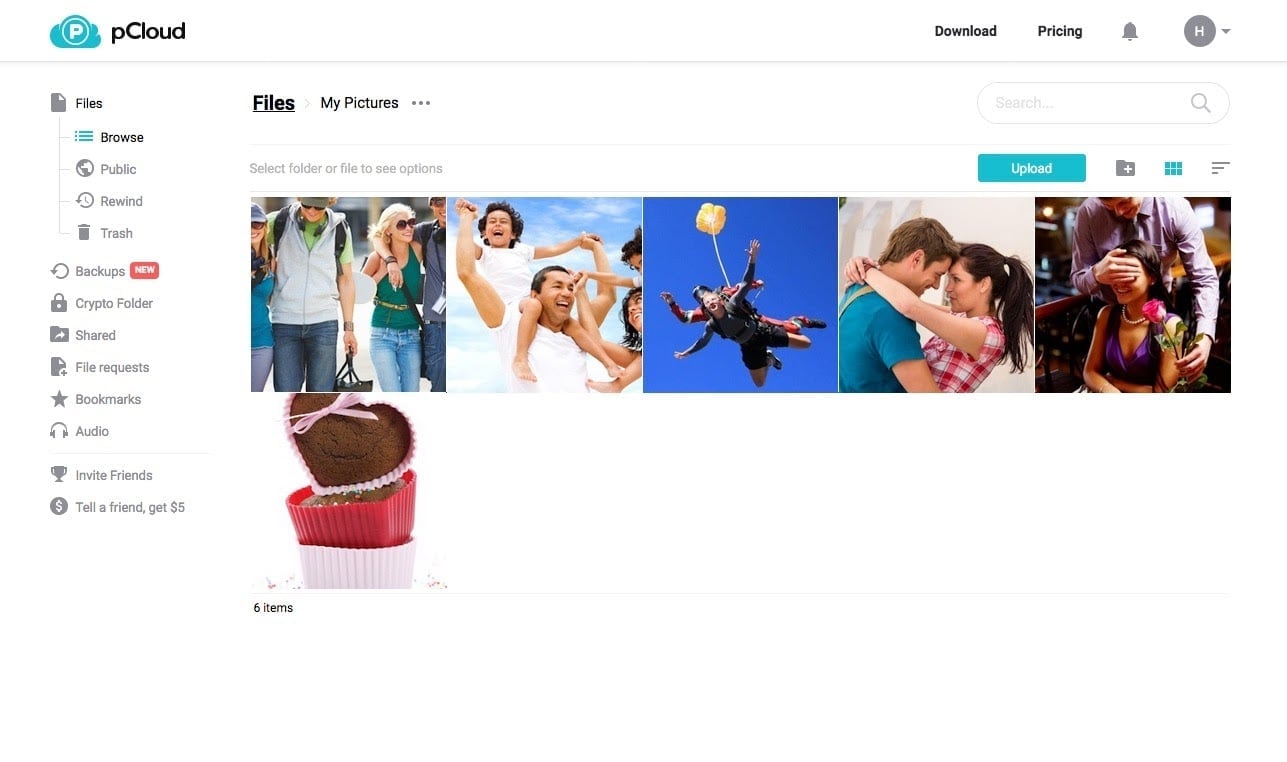
Desktop (Easiest):
- Download pCloud Drive for your computer
- Drag and drop your downloaded iCloud photos into the pCloud folder
- Done. They sync automatically.
Mobile:
- Install the pCloud app
- Enable “Camera Upload” in settings
- All future photos auto-upload to pCloud instead of iCloud
Pro tip: pCloud has automatic upload that instantly backs up new photos. Once enabled, you can turn off iCloud Photos entirely and stop paying Apple.

Upload to Icedrive
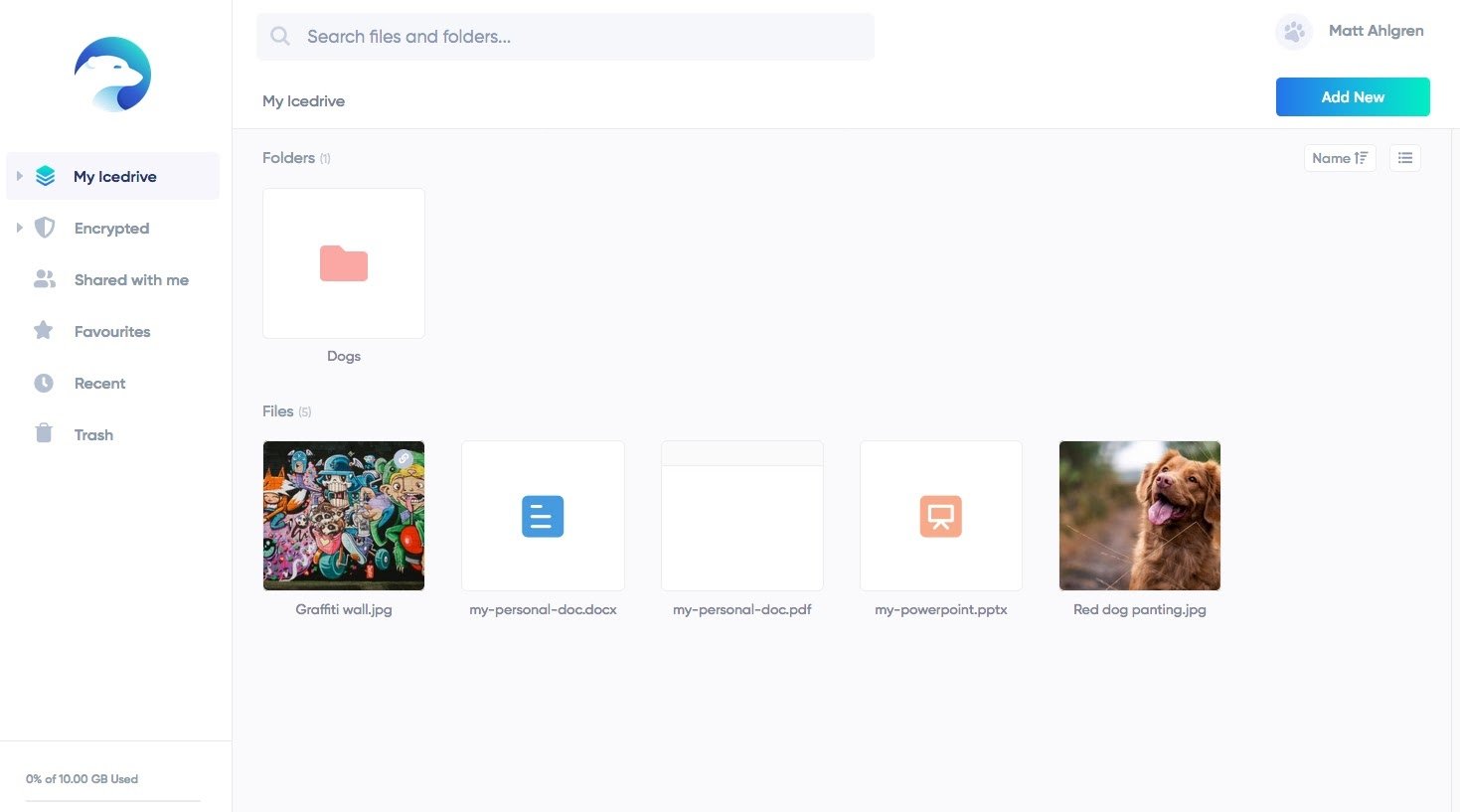
Desktop:
- Install Icedrive’s desktop app
- Use their “Virtual Drive” feature - your cloud storage mounts like a USB drive
- Copy your photos directly into the Icedrive folder
Why this is cool: Icedrive’s virtual drive means you can access all your cloud files without actually downloading them to your computer. It’s like having a 5TB hard drive that doesn’t take up any physical space.
Mobile:
- Install the app and enable photo backup
- Future photos auto-upload to Icedrive

Upload to Sync.com
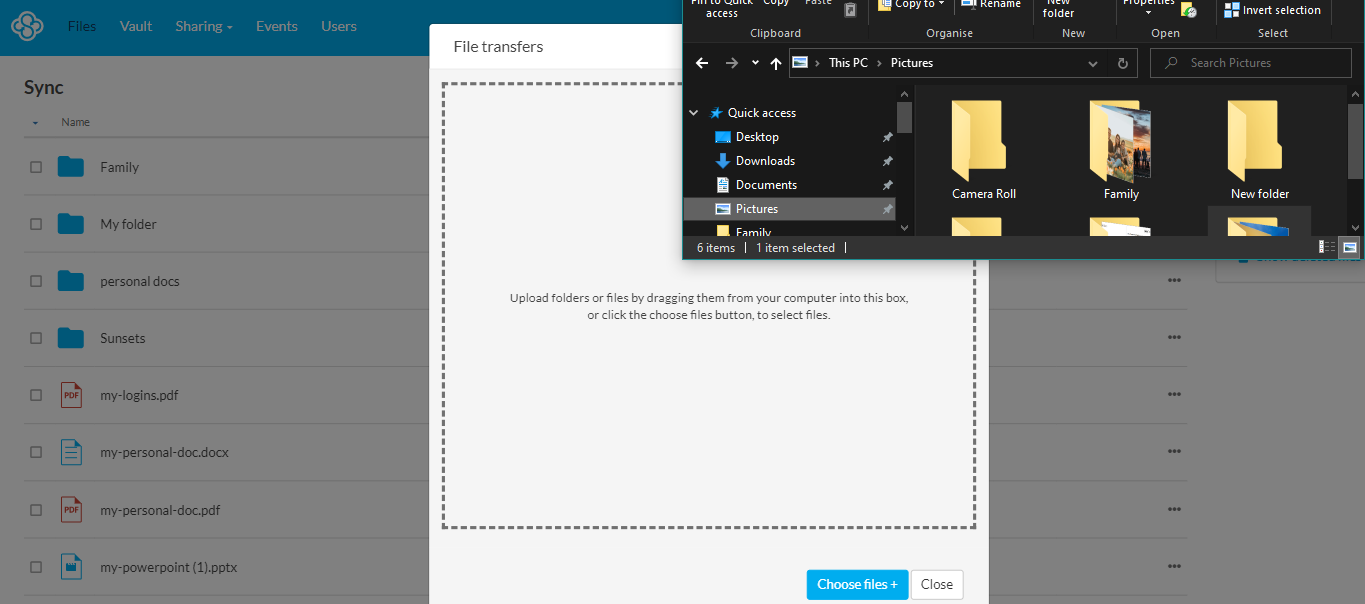
Desktop:
- Install Sync.com desktop app
- Drag your downloaded photos into the Sync folder
- Everything encrypts automatically before upload
Mobile:
- Enable Camera Backup in the Sync.com app
- All new photos auto-upload with zero-knowledge encryption
Why Sync.com: This is the most paranoid option. Your files are encrypted on your device BEFORE they reach Sync’s servers. Even Sync.com employees can’t see your photos. If you’re storing sensitive documents or just don’t trust cloud providers (smart), this is your pick.

Upload to Internxt
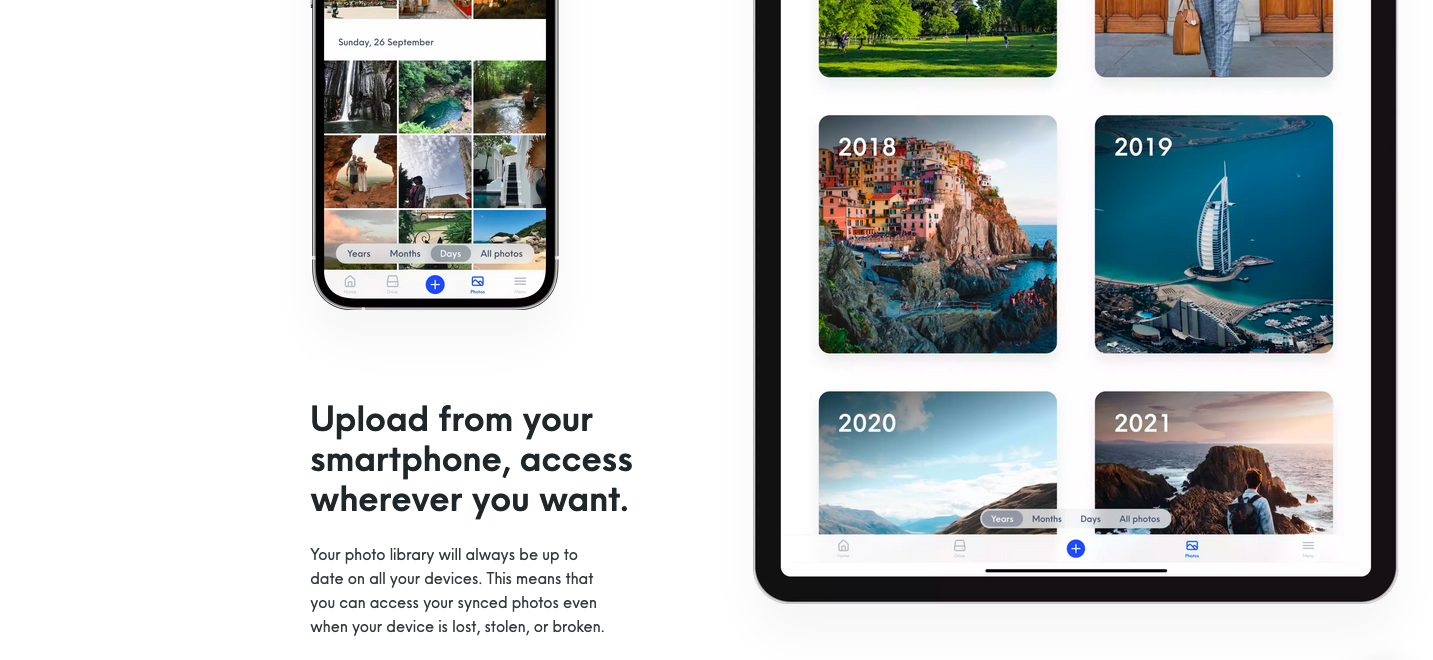
Internxt uses decentralized storage (your files are split across multiple servers). It’s the most privacy-focused option but also the smallest company.
Process:
- Install Internxt Drive
- Upload your photos through the web interface or desktop app
- Enable photo sync on mobile
Honest take: Internxt has the best privacy story (decentralized + zero-knowledge), but they’re a smaller operation. If they go out of business, you’ll need to migrate again. For most people, pCloud or Sync.com are safer bets.
Why You Should Escape Apple’s iCloud Trap
Let’s be real about why Apple’s 5GB free storage is bullshit:
It’s a hostage situation. Apple knows you’ll fill 5GB in weeks, then you’re stuck paying monthly fees forever and dealing with annoying “storage full” notifications. They could easily offer 50GB free (Google gives 15GB), but why would they kill a revenue stream?
Your data is locked in. Try switching to Android? Good luck exporting everything. Apple makes it deliberately painful to leave their ecosystem. That’s not a bug, it’s their business model.
They’ll decrypt for law enforcement. Apple backed down from end-to-end iCloud encryption after FBI pressure. Your photos aren’t as private as you think.
Better options exist. For the same $120/year you’d pay Apple for 2TB, you can buy pCloud’s 2TB lifetime plan and never pay again. Or get Sync.com’s actually-private encryption.
Bottom Line
Apple makes great hardware. Their cloud storage? It’s a cash grab wrapped in vendor lock-in.
If you value your money, your privacy, or your freedom to switch devices without losing your memories, get your photos out of iCloud and into a service that doesn’t treat you like a captive customer.
5GB is laughably small in 2026. Here’s how fast you’d burn through it:
Photos & Videos:
- ~1,250 iPhone photos (at ~4MB each) - that’s like a weekend trip
- ~2-3 minutes of 4K video - literally one decent clip
- ~10 minutes of 1080p video - a short family gathering
Backups:
- One iPhone backup can easily be 5-15GB depending on your apps and data
- You literally can’t back up your phone if you have a decent amount of apps
Other stuff:
- 1-2 large apps worth of documents/data
- A few dozen WhatsApp video messages
- Maybe 1,000 songs if you’re syncing music
5GB is basically a teaser to push you toward the $0.99/month plan. The free tier is essentially useless for anyone who actually uses their iPhone.
Pick pCloud for value, Sync.com for security, or Icedrive for features. Any of them beats staying in Apple’s walled garden.
Sources
- Apple drops plans for encrypting backups after FBI complained - Apple Insider
- Apple Data and Privacy Portal - Apple Support
- iCloud+ Plans and Pricing - Apple Support